Onboard Your
Roster to Agentio
Invite your whole roster at once, track creator status in one place, and get multiple creators matched into campaigns with the world's best brands in minutes


How it works
Four steps, all from your side. Creators get one invite from you.
01
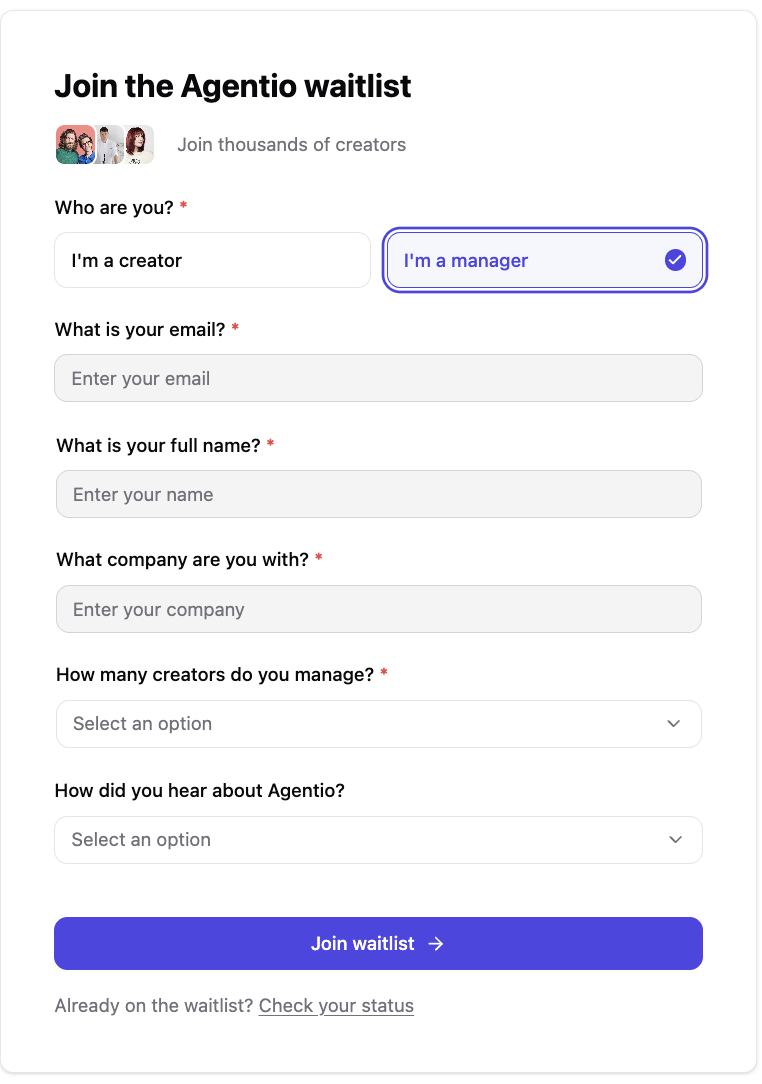
Join the waitlist
Select “I’m a manager” and verify your email.
02
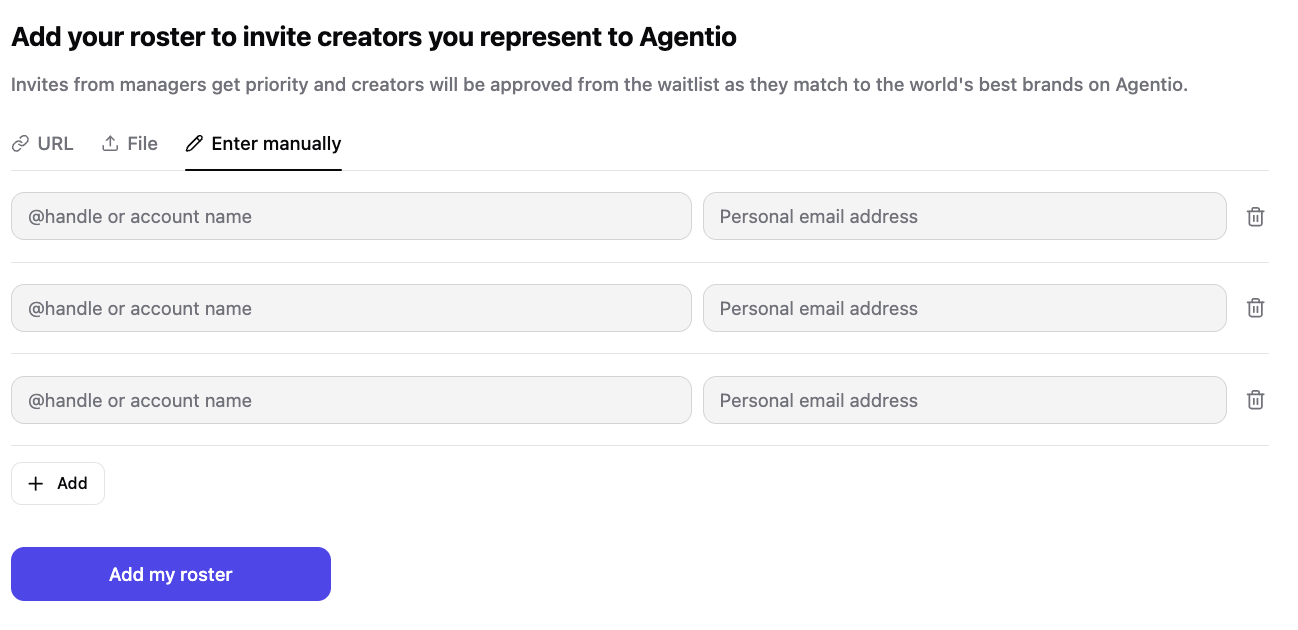
Add your roster
Handles + emails via URL, file, or manual entry.
03
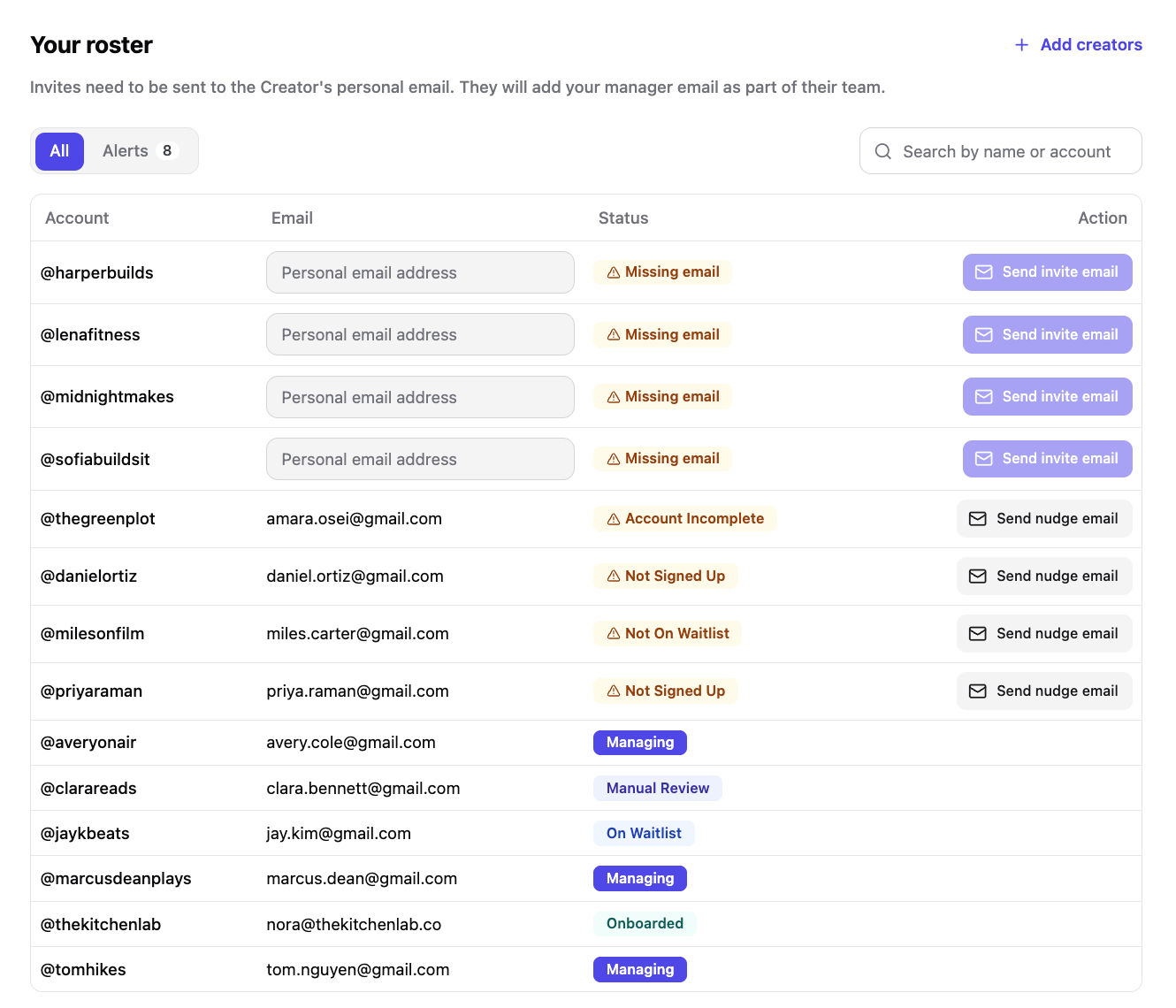
Track every status
Pending, waitlist, or onboarded, all in one view.
04
Get notified
An email arrives as each creator accepts your invite. The first one triggers your manager account creation.
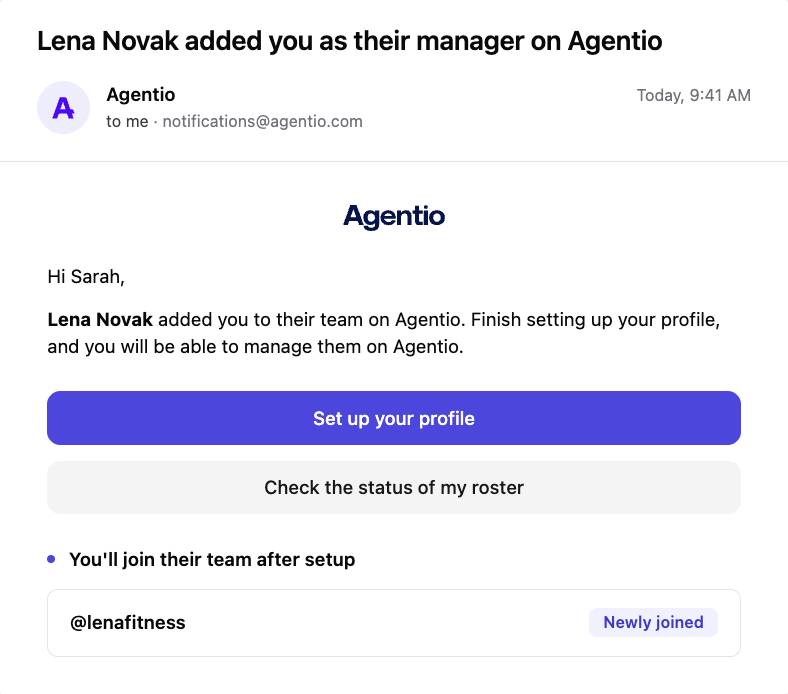
What happens after you invite
The invite comes from you
Creators see that you are inviting them to join your team on Agentio.
You get notified
As each creator is let off the waitlist and set up under your profile.
Your roster fills inStart receiving live bids early.
Creators are auto-added to your manager profile as they accept.

Invite your roster today
Net-new managers can start now.
Set Up Accounting for Your Creators
Your manager account is set up and your creators have joined. Next, add your accounting team to each creator from your Team page. The creator approves, and the accountant gets the creator on their roster with no extra setup.
Your Team page
Each number shows where to click. The panels on the right show what opens.
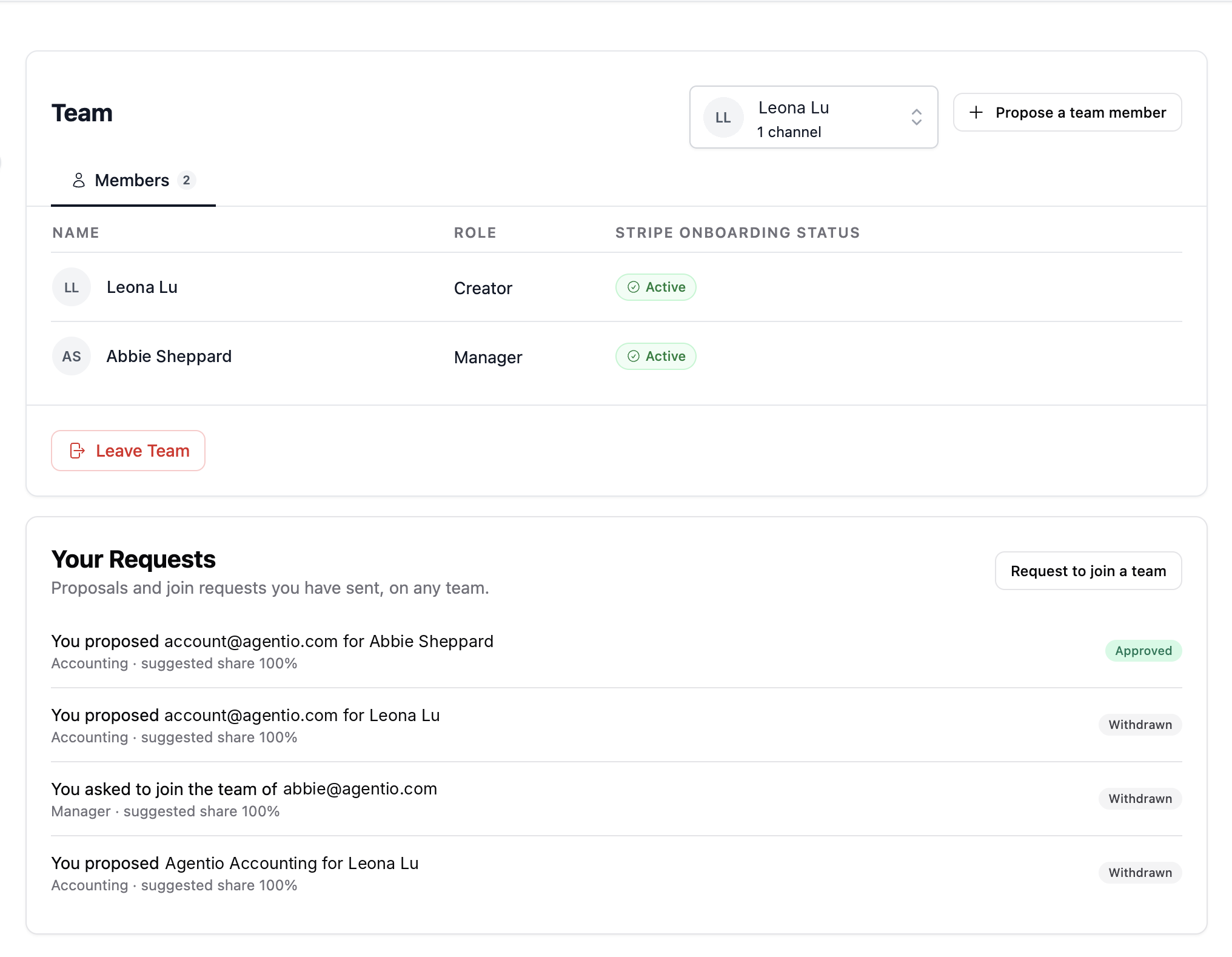
01
Creator dropdown
Pick the creator who needs an accountant.
02
Propose a team member
Adds someone other than you, like an accountant.
03
Request to join a team
Adds your own manager account to a creator’s team.
04
Your Requests
Every proposal and request you send, with its status.
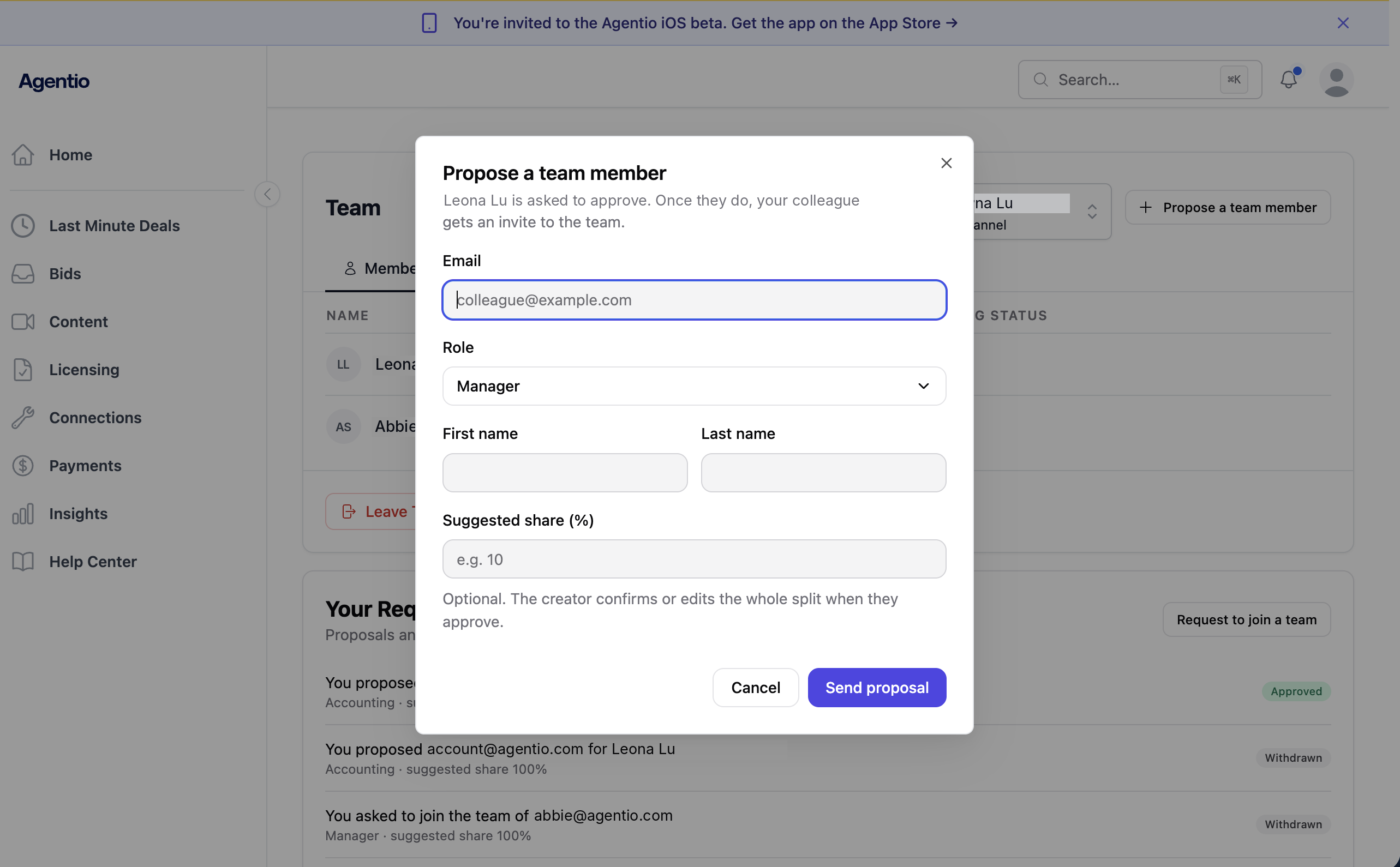
Use this one for accounting. Set Role to Accounting.
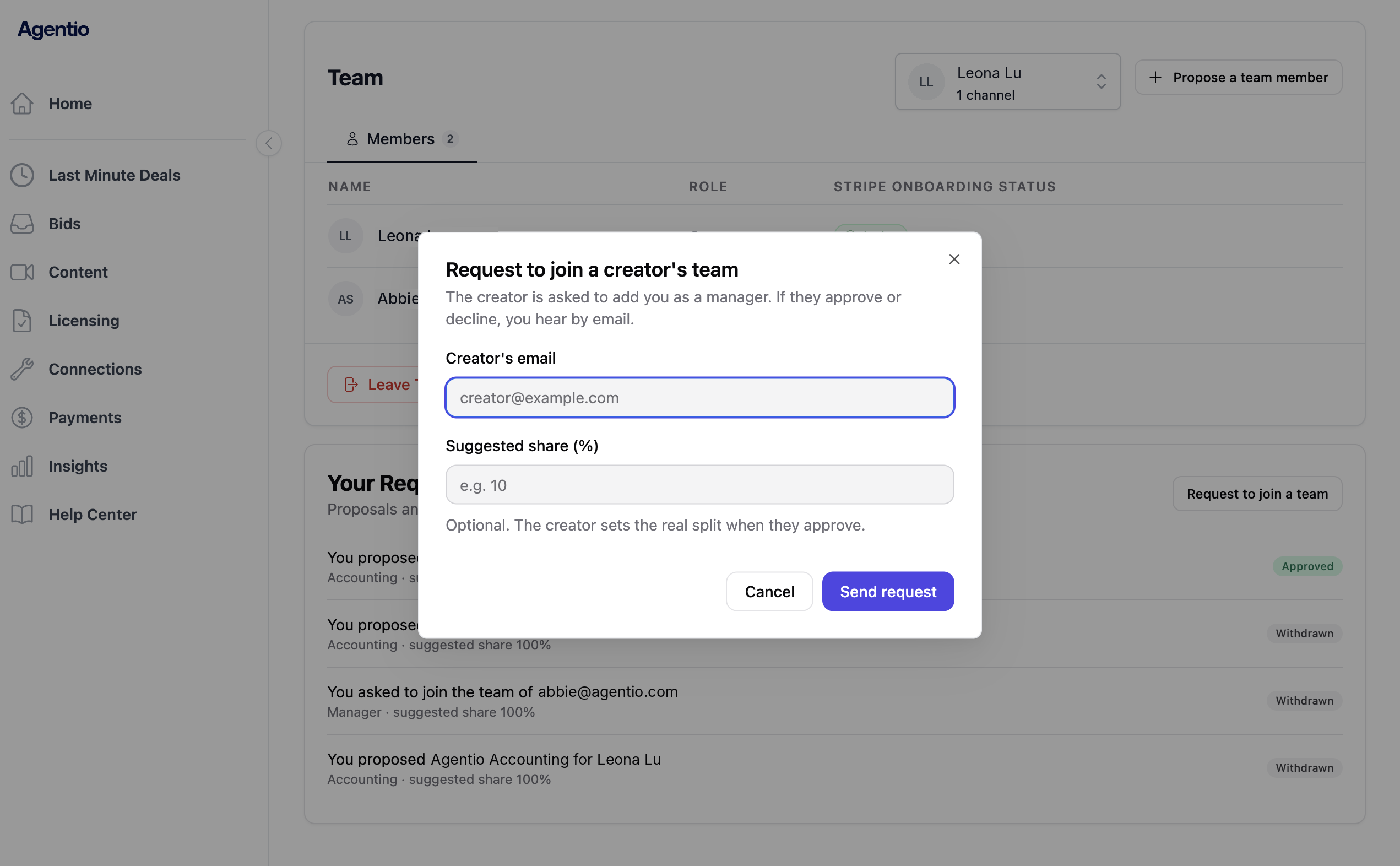
For your own manager account only. Not for accountants.
Send the proposal
01
Pick the creator
Go to Team. Choose the creator from the dropdown at the top right.
02
Click Propose
Click Propose a team member. Enter the accountant’s email.
03
Set Role to Accounting
The form starts on Manager. Switch the dropdown to Accounting and add first and last name.
04
Send it
Enter 100 in Suggested share. Accounting always gets 100%. Click Send proposal.
Creator View: Approve the Accountant
Everything on this page happens in the creator’s account, not the manager’s. Once you send a proposal, your creator finds it on their own Team page under Requests. Nothing happens until the creator approves.
What the creator sees when a request comes in
This is the creator’s screen with a request waiting. Managers see a different Team page.
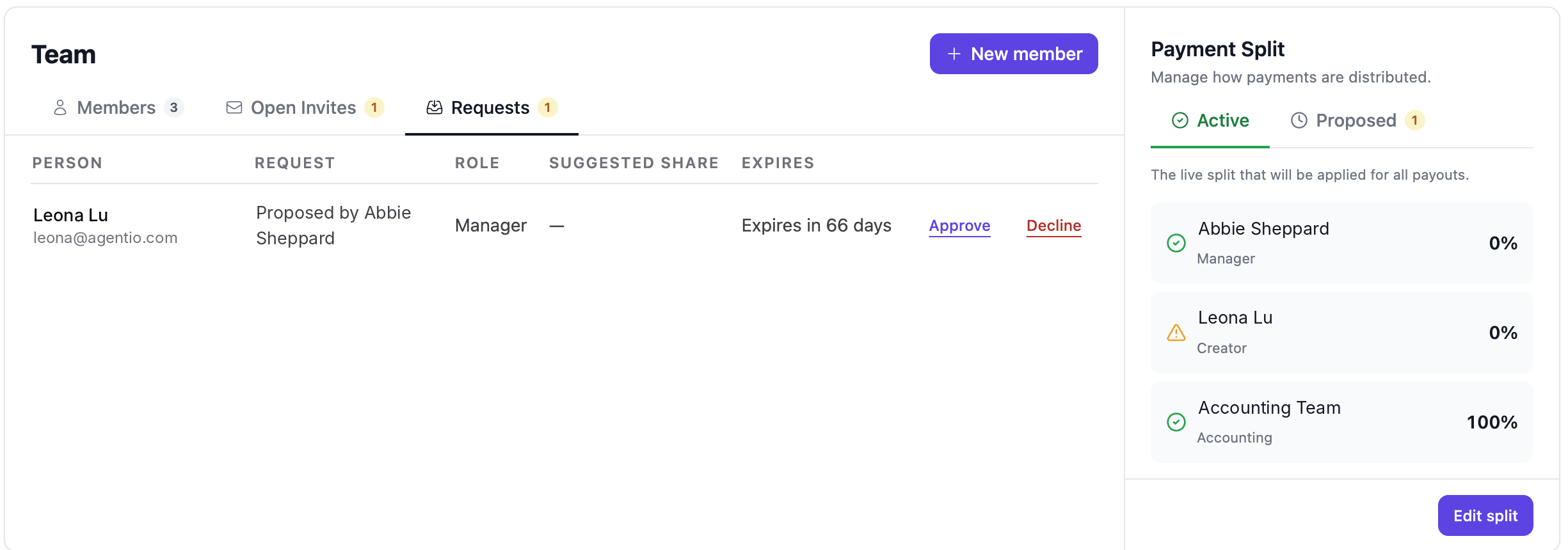
01
Requests
A number appears when a request is waiting.
02
The request
Who the person is, and which manager proposed them.
03
Approve or Decline
One click either way.
04
Payment Split
Accounting at 100%, everyone else at 0%.
Accounting always gets 100%.
The accounting team receives the full payment and handles the split from there. Set it any lower and the payment splits across the team instead. The creator and manager showing 0% here is expected.
Creator steps: approve the request
01
Open Team
The creator logs in to their own account and clicks Team in the left menu.
02
Click Requests
The proposal shows who sent it, the accountant’s email, the role, and any suggested share.
03
Approve or decline
The creator clicks Approve to add the accountant, or Decline if they don’t recognize the person.
04
Set Accounting to 100%
On approval, the creator clicks Edit split, sets Accounting to 100%, and saves.
What Your Accountant Sees
Accountants get one page: Payments. It shows 100% of every payment for each creator on their roster, at the full deal amount.
Track every payment
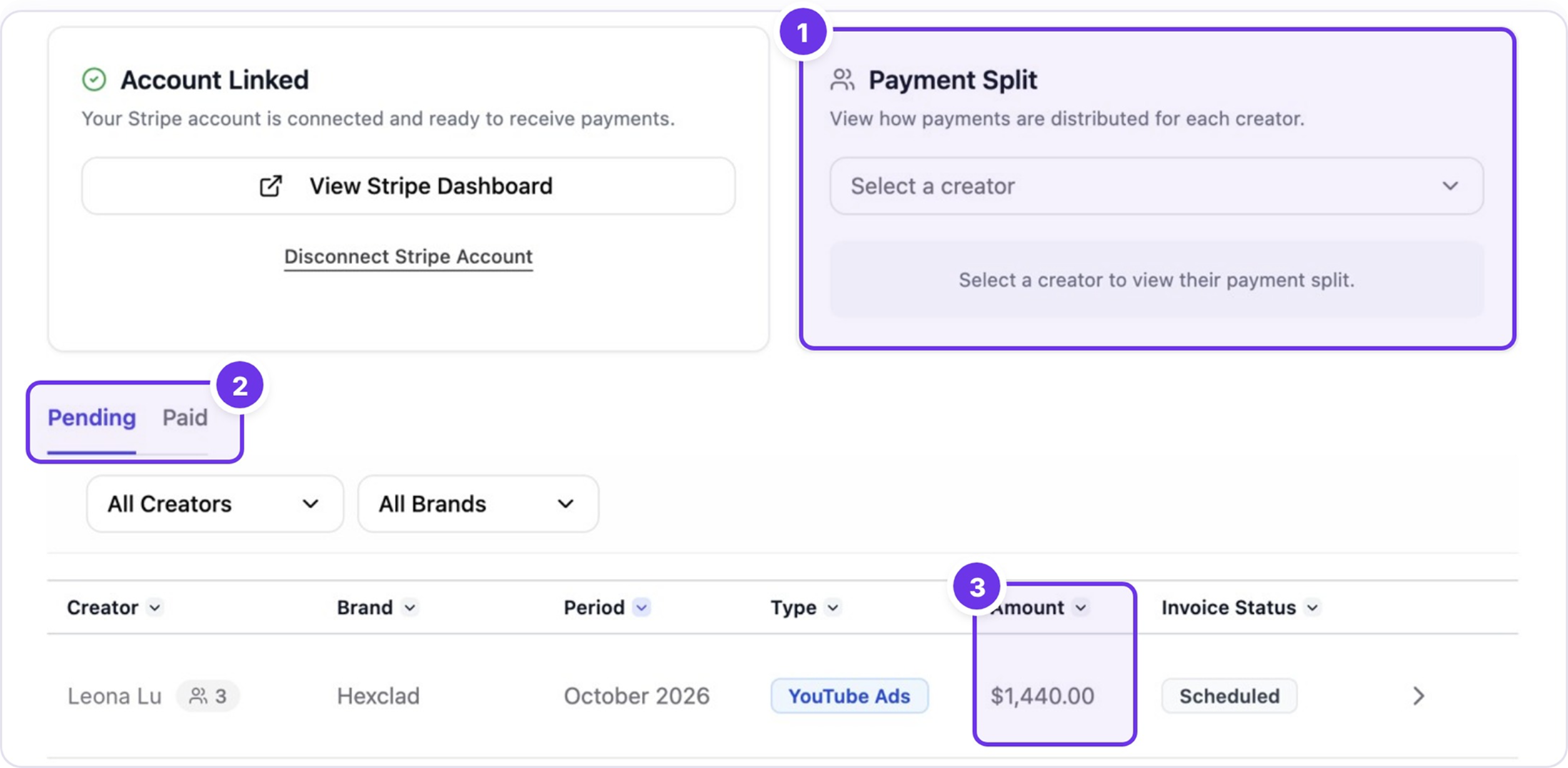
01
Payment Split
Pick a creator to see how each payout splits.
02
Pending and Paid
Upcoming payouts and payment history.
03
Amount
The full payment, not one person’s share.
Find a bundled payment
One Stripe payment sometimes covers several deals. Stripe Lookup breaks it back into line items.
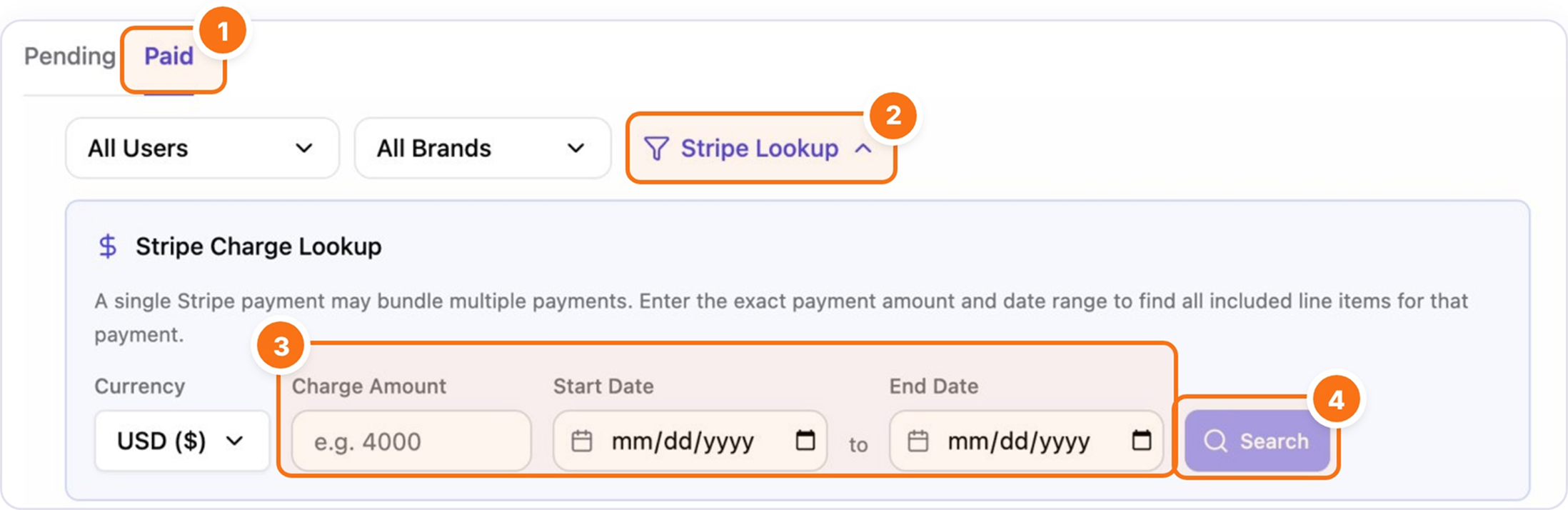
01
Click the Paid tab.
02
Click Stripe Lookup.
03
Enter the exact amount from Stripe and a date range.
04
Click Search to see every deal in the payment.