.png)


The Measurement Gap YouTube Creates
YouTube creator marketing is one of the fastest-growing advertising channels, but one of the hardest to measure. Standard attribution tracks where a customer clicked, not how they actually discovered your brand. Post-Purchase Surveys capture the self-reported signal that clicks and pixels often miss.
The guide below walks you through how to set up your Fairing survey to capture granular, creator-level data so you can stop guessing which creators move the needle and start proving it.
Step 1: Set Up Your Main Attribution Question
Every PPS starts with one question: "How did you first hear about us?"
In Fairing, navigate to your main attribution question and click More Actions → Edit. Add all relevant channels. Here are some of the most popular channels customers use to discover brands today:
- YouTube
- TikTok
- Snapchat
- Podcast
- Newsletter / Substack
- TV / Streaming
- Search (Google, Bing, etc.)
- AI Chat (ChatGPT, Perplexity, etc.)
- Press / Article
- Direct mail
- Friend / Family
- Other
Step 2: Add Follow-Up Questions for Creator-Relevant Channels
Channel-level attribution tells you which channels are working — but not which creator drove the sale. For every creator-driven channel, add a follow-up question to trace performance back to individual creators.
Let's take YouTube as an example. To set up the Auto Suggest follow-up:
- Enter the question as 'Can you share where on YouTube?'
- Add every creator you've worked with in the past year to the Bulk Responses box
- If you're also running YouTube Ads, add a 'Saw an ad' response to separate paid media from creator-driven conversions
- Set the help text to: YouTuber? Type their channel name
- Keep these settings enabled:
- Allow Any Customer Input - lets customers write in names you haven't added yet (and captures organic mentions)
- Auto Advance - customers auto-submit on click. Less friction, higher completion rates
- Allow Any Customer Input - lets customers write in names you haven't added yet (and captures organic mentions)
Unlike Open-ended or Single Response, Auto Suggest keeps your analytics clean from day one.
Ensure you do this for every channel where you are partnering with creators (e.g., Instagram, TikTok, etc.)

Step 3: Clean Up Write-In Responses for Accurate Analytics
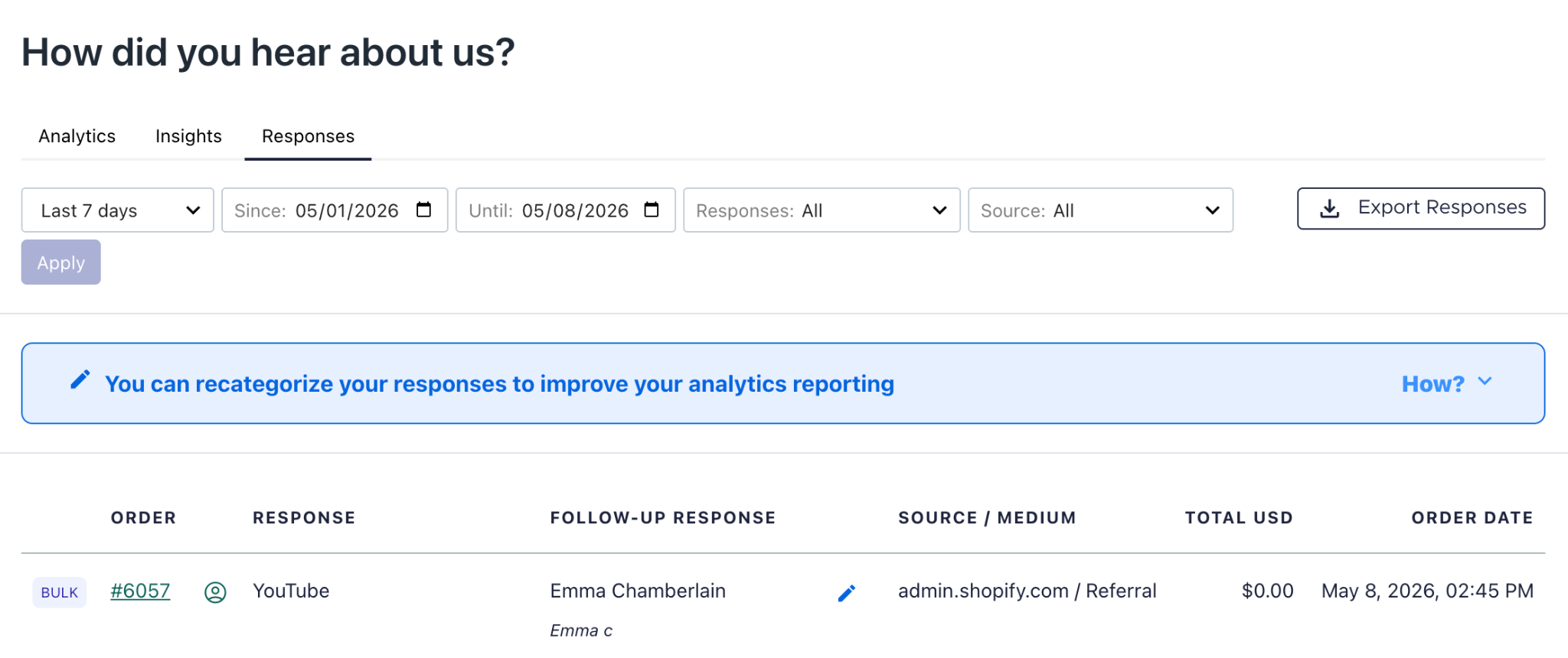
Once responses start coming in, navigate to Responses and click the pen icon to recategorize write-ins. For example, remap ‘Emma c’ to the correct ‘Emma Chamberlain’ response. This keeps your analytics aggregated properly and ensures your creator-level ROI data is accurate when you bring it together with Agentio’s performance metrics.
Automated re-categorization of write-in responses is coming soon!
Questions?
Reach out to Fairing or Agentio. We’re here to help you get the most out of your creator measurement setup.

.png)